 FatRat
Terminal Interface
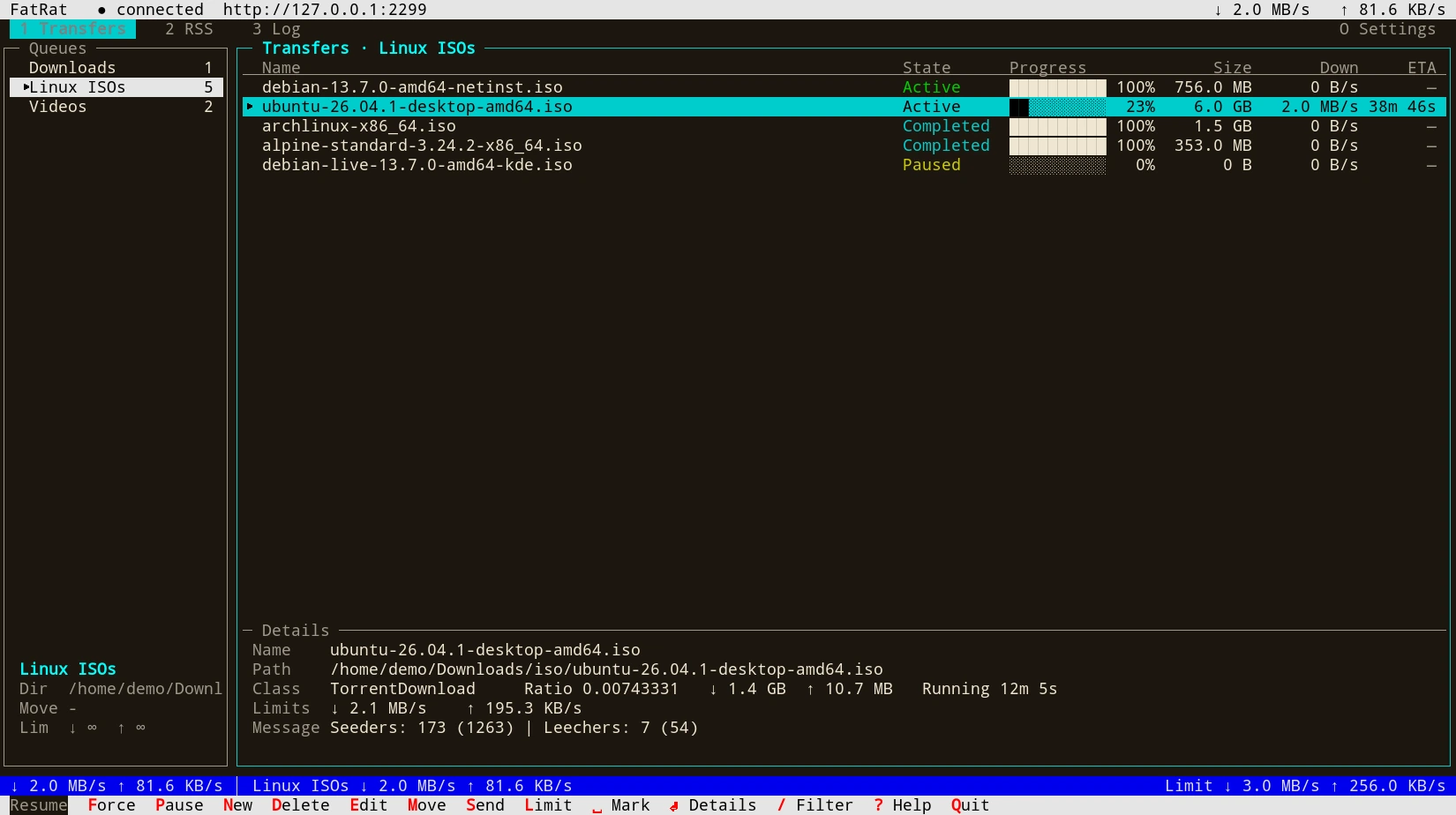
fatrat-tui is a full-screen terminal client for FatRat. It manages transfers and queues, and shows transfer details, the RSS feeds and rules, the log, the settings and the extensions. It works over SSH, and it can run at the same time as the desktop app and the web interface, against the same FatRat.
fatrat-tui talks to FatRat through its REST API, either on a unix socket or through the web interface. To set up FatRat on a server, see Running on a Server.
Starting it and connecting
Run it without options:
fatrat-tui
By default (--mode auto) it tries these, in this order:
- A FatRat server that is already running on the unix socket
$XDG_RUNTIME_DIR/fatrat/rest.sock. A unix socket needs no password. - A FatRat running on this computer whose settings turn on the web interface.
fatrat-tuireads the port, HTTPS and the password from FatRat's settings file, and connects to127.0.0.1. - Otherwise, it starts a private FatRat server of its own (
fatrat-nogui, orfatrat) on the unix socket. This server uses your normal FatRat settings and transfers.
If you run the desktop app, turn on its web interface, so that fatrat-tui connects to it instead of starting a server of its own.
Other modes skip some of these steps:
--mode local- Only the running FatRat found through its settings (step 2).
--mode socket- Only the unix socket, starting a server there if needed (steps 1 and 3).
--no-start- In auto mode, never start a server: fail if nothing is running.
What it would do: --which
--which prints how fatrat-tui would connect, and why, and then exits. It doesn't start or change anything. For example:
$ fatrat-tui --which
Unix socket /run/user/1000/fatrat/rest.sock: nothing is listening
Settings /home/you/.config/Dolezel/fatrat.conf: the web interface is turned off
Starting a FatRat server of our own on the unix socket /run/user/1000/fatrat/rest.sock (it uses your normal FatRat settings and transfers)
Connecting to another computer
Give the address of FatRat's web interface with --url, or in the FATRAT_URL environment variable:
fatrat-tui --url https://server.example.com:2233
--url takes http://host:port, https://host:port or unix:/path/to.sock. It can't be combined with any --mode other than url.
Over HTTP or HTTPS, fatrat-tui needs the web interface password. It takes the first of these:
--password-filefile: the first line of the file. The file must exist, be readable by you, and not be readable or writable by the group or by others. Otherwisefatrat-tuiprintsCannot use the password fileand an explanation, and exits without connecting.- The
FATRAT_PASSWORDenvironment variable. - The settings of a FatRat running on this computer (step 2 of auto mode).
- Otherwise, it asks for the password in a dialog.
--password-prompt always asks, even when one of the others has a password. A user name and password written into the URL are ignored. FatRat's web interface accepts any user name, so fatrat-tui never asks for one.
Over plain http:// to another computer, fatrat-tui warns that the password travels unencrypted. Use https:// if the server offers it.
When the server's certificate isn't trusted (for example, a self-signed one), fatrat-tui shows its SHA-256 fingerprint and lets you choose Trust for this session, Remember this fingerprint or Quit. Remembered fingerprints are stored in ~/.config/fatrat/tui.conf. --insecure turns off the certificate check.
The unix socket
--socket path uses a different unix socket than $XDG_RUNTIME_DIR/fatrat/rest.sock, for both finding a running server and starting one. For example, for the system service described in Running on a Server:
sudo -u fatrat fatrat-tui --socket /run/fatrat/rest.sock
These options affect a server that fatrat-tui starts:
--server-binpath- The FatRat program to start. By default it is
fatrat-noguiorfatrat, next tofatrat-tuior inPATH. --configfile- A FatRat settings file.
fatrat-tuireads it to find a running FatRat, and a server it starts uses it. --stop- Stop a server that
fatrat-tuistarted earlier, and exit.
While the server starts, fatrat-tui shows the path of its log, ~/.local/state/fatrat/tui-server.log.
Quitting
Press Q (or Ctrl-C) to quit. If fatrat-tui started the server itself, quitting stops it too. If transfers are active, it asks first: Keep it running (downloads continue), Stop the server and quit or Cancel. A server that you keep running is found on the unix socket the next time you start fatrat-tui. A server that was already running when you started fatrat-tui is never stopped.
If fatrat-tui ends in another way, because the terminal closes or it gets SIGTERM or SIGHUP, it does not ask. It stops a server it started only when nothing is active, and otherwise leaves it running.
The screen
The terminal must be at least 60 columns by 16 lines.
- The title bar at the top shows the connection state (connecting, connected, disconnected, retrying or password required), what
fatrat-tuiis connected to, and the total download and upload speeds. - Below it are the tabs 1 Transfers, 2 RSS and 3 Log, and O Settings on the right.
- The status line, second from the bottom, shows the total speeds, the speeds of the current queue and how many transfers are marked. Messages, such as errors from the server, replace it for a few seconds.
- The key bar on the last line shows the keys of the focused pane. The key is highlighted in each label, for example the R in Resume.
Transfers tab
The Queues pane on the left lists the queues with the number of transfers in each. Below the list it shows the current queue's default directory (Dir), the directory finished transfers are moved to (Move), the watch folder (Watch) and the speed limits (Lim). A queue whose watch folder has a problem gets a ! before its name, and the Watch line names the problem.
The Transfers pane on the right lists the transfers of the current queue with their name, state, progress, size, download speed and time left. When the terminal is at least 22 lines high (23 when it is narrower than 100 columns), a Details strip at its bottom shows the selected transfer's name, path, class (the engine), speed, limits, message and comment.
In a terminal narrower than 100 columns, the Queues pane is replaced by a Queue line above the transfers; ← and → switch to the previous and next queue.
Enter opens the details view of the selected transfer. It has the tabs Info, Files (for torrents only) and Log, and replaces the transfer list until you press Esc.
RSS tab
The Feeds pane on the left and the Download rules pane on the right. See RSS for what feeds and rules do. A new rule starts with Include repacks and Exclude manual ticked, and Include trailers unticked.
Log tab
FatRat's global log. By default it follows the end of the log. Press T to see the log of the transfer selected on the Transfers tab instead, and T again to go back.
Settings and extensions
O or F2 opens the settings that the connected FatRat offers, such as RSS, Scheduler, BitTorrent and Web Interface. Pages it can't show say so. X or F4 opens the Python extensions. Its sections are Installed, Available and Repositories; Tab switches between them.
Keys
Letter keys work in either case. Press ? or F1 for the list of keys inside fatrat-tui.
Everywhere
| Key | Action |
|---|---|
1, 2, 3 | Transfers, RSS and Log tab |
F2 or O | Settings |
F4 or X | Extensions |
| Tab, Shift-Tab | Next and previous pane |
↑ or K, ↓ or J | Up and down in a list |
| ←, → | Queues pane, Transfers pane (in a narrow terminal: previous and next queue) |
| PgUp, PgDn, Home, End | Page up, page down, first, last |
/ | Filter the transfers by name |
| Esc | Back; on the Transfers tab, clear the filter, then the marks |
F1 or ? | Help |
Q, Ctrl-C | Quit |
| Ctrl-L | Redraw the screen |
Transfers pane
Most keys act on the marked transfers, or on the selected one when none is marked.
| Key | Action |
|---|---|
R | Resume: queues paused and failed transfers, and turns a forced transfer into a normal one |
F | Force resume |
P | Pause |
N | New transfer |
D | Delete: asks whether to keep the files or delete them too |
E | Edit the transfer's properties |
M | Move, then T to the top, U up, D down or B to the bottom |
[, ] | Move up, move down |
S | Send to another queue |
L | Speed limit |
| Space | Mark or unmark |
A | Mark all or none |
| Enter | Open the details view |
Queues pane
| Key | Action |
|---|---|
N | New queue |
E | Edit the queue |
D | Delete the queue |
[, ] | Move the queue up, down |
L | Queue speed limits (opens the queue editor) |
| Enter | Open the queue (focus its transfers) |
Details view
| Key | Action |
|---|---|
| Tab, Shift-Tab | Next and previous tab |
Esc or B | Back to the list |
On the Files tab of a torrent, priority changes take effect only when you apply them:
| Key | Action |
|---|---|
+ or = | Raise the file's priority |
- | Lower the file's priority |
S | Skip the file, or stop skipping it |
A | Download all files (stop skipping) |
| Enter | Apply the changes |
RSS tab
| Key | Action |
|---|---|
N, E, D | New, edit, delete a feed or a rule |
R | Refresh the feeds now |
T | Rules: test a regular expression |
W | Rules: the downloaded episodes |
| Tab | Switch between feeds and rules |
Log tab
| Key | Action |
|---|---|
F | Follow the end of the log, on or off |
/ | Search |
N | Next match |
G, End | Top, bottom |
T | Log of the selected transfer, or back to the global log |
Mouse
In a terminal that supports the xterm mouse protocol, you can use the mouse:
- Click a tab, a row, a button or a key in the key bar.
- Double-click a transfer to open its details, or a queue to edit it.
- Right-click a transfer or a queue for a menu.
- Ctrl-click marks a transfer; Shift-click marks a range.
- Drag a transfer to move it in the list, or drop it on a queue to send it there. Dragging a marked transfer takes all marked transfers along. Drag a queue to reorder the queues.
- The wheel scrolls.
--no-mouse turns mouse support off, so that the terminal's own mouse handling, such as selecting text, works as usual.
Editing transfers and queues
N and E open forms. See Transfers and Queues for what the fields mean.
- New transfer: Links, Engine, Queue, Save to, Speed limit down, Speed limit up and Start paused. Separate several links with spaces. If Links is the path of a file on the computer where
fatrat-tuiruns, such as a .torrent file, the file is uploaded to FatRat. - Transfer properties: Comment, Destination (or Source for an upload), Speed limit down, Speed limit up, Run on completion and the engine's Options.
- New queue and Edit queue: Name, Default directory, Move finished to, Watch folder, Upload as download, Speed limit down, Speed limit up, Active downloads and Active uploads. Leave Watch folder empty for none; see Watch Folders. In a new queue, Active downloads and Active uploads start at -1, which means no limit; 0 lets only forced transfers run.
Speed limits are in KB/s; 0 means no limit.
Keys in forms
| Key | Action |
|---|---|
| Tab, Shift-Tab, ↑, ↓ | Next and previous field |
| ←, → or Space | Change a choice (shown as ◂ … ▸) |
| Space | Tick or untick a check box |
| Ctrl-A, Ctrl-E | Start, end of the text |
| Ctrl-U | Clear the field |
| Ctrl-K | Delete to the end |
| Ctrl-W | Delete the word before the cursor |
| Ctrl-B | Browse for a directory |
| Enter | Save (or Add, Create) |
| Esc | Cancel |
Ctrl-B browses the directories on the computer where FatRat runs. In the New transfer form it fills Save to; in the queue form it fills the directory field you are in (Default directory, Move finished to or Watch folder). In the directory browser, Enter opens a directory, Backspace goes up, C chooses the current directory, H shows or hides hidden directories, and Esc cancels.
Plain ASCII
fatrat-tui draws boxes, arrows and progress bars with Unicode characters. It switches to plain ASCII characters when you give --ascii, or when the locale's character set isn't UTF-8 (when the locale set by LC_ALL, LC_CTYPE or LANG doesn't name UTF-8, or isn't installed). It uses colours when the terminal supports them.
More
The full reference is man fatrat-tui.